
Zoho Books M-Pesa Integration in Kenya: Complete Setup Guide
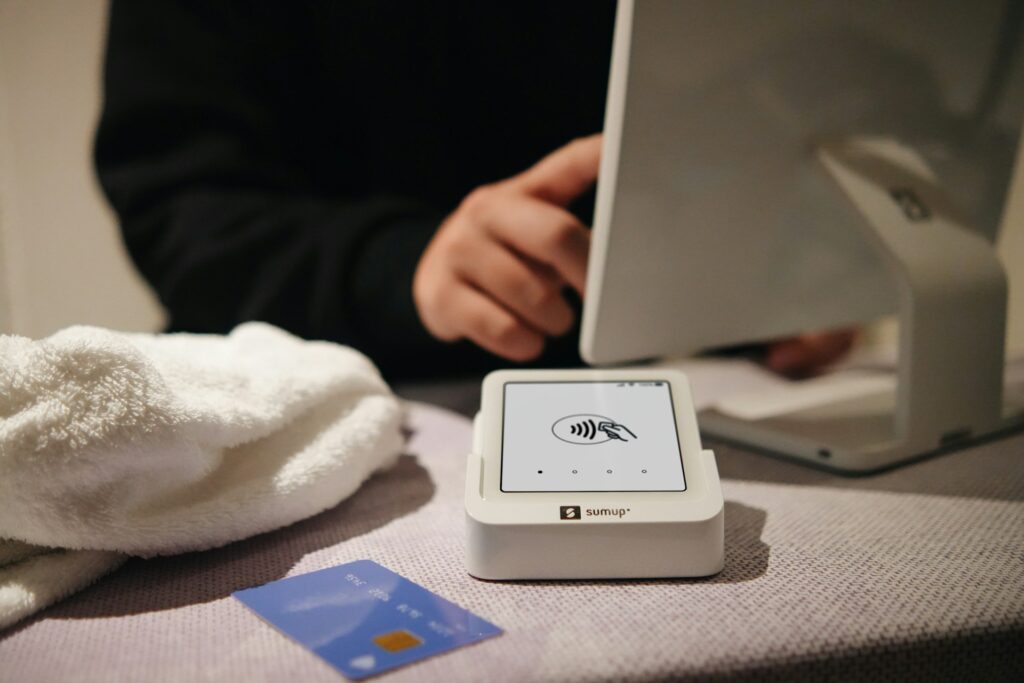
Imagine this: It’s a busy Monday morning. You’ve already made five sales via M-Pesa, but you’re still manually typing each transaction into your spreadsheet. By noon, you realize you’ve entered one amount incorrectly, and now your books don’t match your M-Pesa statement. You spend the next hour hunting for the error instead of serving customers.
For Kenyan business owners, this scene plays out daily. M-Pesa has made collecting money effortless, but reconciling those payments? That’s still a manual nightmare.
But it doesn’t have to be.
Zoho Books, the powerful cloud accounting platform, now offers native integration with Safaricom’s M-Pesa. This means every payment your customers make can be automatically recorded, reconciled, and tracked without you lifting a finger.
At Finytab Solutions, we specialize in setting up these automations for Kenyan businesses. As part of our Business Automation & Zoho Setup Services in Kenya, we help entrepreneurs eliminate manual bookkeeping and gain real-time visibility into their cash flow. In this guide, we’ll walk you through everything you need to know about integrating Zoho Books with M-Pesa—from requirements to step-by-step setup and troubleshooting.

What is Zoho Books?
Before diving into the integration, let’s understand the foundation. Zoho Books is cloud-based accounting software designed for small and medium businesses. It handles invoicing, expense tracking, bank reconciliation, inventory management, and financial reporting—all in one place .
What makes Zoho Books particularly powerful for Kenyan businesses is its local edition. Unlike generic global versions, the Kenya edition supports KES currency, understands local tax requirements (VAT, withholding tax), and now integrates directly with M-Pesa .
Think of Zoho Books as your automated bookkeeper. It never sleeps, never makes typos, and never forgets to record a transaction.

Why Integrate M-Pesa with Zoho Books?
M-Pesa is the lifeblood of Kenyan commerce. From the smallest kiosk to the largest distributor, everyone uses it. But here’s the problem M-Pesa creates for business owners:
The Manual Reconciliation Headache
When customers pay via M-Pesa:
You receive an SMS notification
You manually check the customer’s name against the amount
You open your accounting system (or spreadsheet)
You find the matching invoice
You mark it as paid
You record the transaction details
For a business with 20 daily transactions, that’s at least an hour of admin work. For 100 transactions? You’ve lost half your day just to data entry. And every manual entry carries the risk of typos, missed payments, or forgotten records

What Integration Solves
When you connect Zoho Books with M-Pesa, here’s what happens automatically :
1. Instant Payment Recording
The moment a customer pays an invoice via M-Pesa, Zoho Books captures the transaction. No manual entry. No delays. No errors.
2. Automatic Invoice Reconciliation
The system matches the payment to the specific invoice and updates the status from “Sent” to “Paid” instantly. You always know who has paid and who hasn’t.
3. Real-Time Cash Flow Visibility
Your financial reports update immediately. You can see your true cash position at any moment without waiting for end-of-day manual updates.
4. Eliminated Data Entry Errors
Computers don’t transpose numbers or forget decimal points. Once configured correctly, the integration records transactions perfectly every time.
5. Enhanced Customer Experience
Customers receive automatic payment confirmations. They can see their paid invoices in their customer portal. Professionalism increases without extra work from you .
6. Simplified Audit Trail
Every transaction is timestamped and traceable. When KRA comes calling, your books are clean and verifiable.
7. Time Savings
Businesses report saving hours weekly on reconciliation alone. That’s time you can redirect to serving customers, developing products, or actually enjoying your life

Requirements Before You Start
Before diving into the setup, ensure you have these prerequisites in place. Missing any of these will halt the integration process.
1. Zoho Books Kenya Edition
This integration works only in the Kenya edition of Zoho Books. If you’re using the global edition, you’ll need to migrate to the Kenya version first. The currency supported is KES .
2. Active M-Pesa Business Account
You need a business M-Pesa account with one of the following:
Paybill Number (for businesses receiving payments from many customers)
Till Number (for retail or point-of-sale businesses)
Standard M-Pesa accounts (the ones on personal lines) won’t work for this integration.
3. Safaricom Daraja Portal Account
Daraja is Safaricom’s API platform. It’s the bridge that allows Zoho Books to talk to M-Pesa. You’ll need to:
Register on the Daraja 2.0 website
Create an application
Generate API credentials
4. Business Short Code
This is your Paybill or Till number, formatted specifically for API use. Safaricom provides this when you register for the API service.
5. Pass Key
After taking your Daraja app live, Safaricom emails you a Pass Key. This is a security credential that authenticates your connection.
6. Bank Account in Zoho Books
You need at least one bank account configured in Zoho Books to link M-PESA transactions. This is where the payments will be tracked for reconciliation purposes
Step-by-Step Integration Guide
Now for the main event. Follow these steps carefully to connect Zoho Books with M-PESA.
Step 1: Generate Credentials on Daraja 2.0
The journey begins at Safaricom’s developer portal.
1.1 Access Daraja Portal
Go to the Daraja 2.0 website (developer.safaricom.co.ke). Click LOGIN / SIGN UP .
1.2 Create Account or Log In
If you’re new, click GO TO SIGN UP and complete the registration. Verify your email and phone number as required.
1.3 Create a New Application
Once logged in, navigate to the My Apps page. Click CREATE NEW APP .
1.4 Configure Your App
Enter a descriptive name for your app (e.g., “My Business Zoho Integration”)
Check the box next to Lipa Na M-PESA Sandbox—this selects the correct API product
Click CREATE APP
1.5 Retrieve Consumer Key and Secret
Your new app will appear on the My Apps page with a Consumer Key and Consumer Secret. Copy these immediately and store them securely. You’ll need them in Zoho Books .
1.6 Go Live
Navigate to the GO LIVE tab for your app
Complete all required fields (business details, M-PESA short code, etc.)
Submit for approval. Once approved, a Pass Key will be generated and sent to your registered email .
Note: This approval process can take a few days. Plan accordingly.
Step 2: Configure M-PESA in Zoho Books
With your credentials ready, it’s time to set up the integration.
2.1 Log in to Zoho Books
Access your Zoho Books Kenya edition account.
2.2 Navigate to Payment Gateways
Click the gear icon (Settings) in the top-right corner
Select Online Payments from the dropdown
Click Payment Gateways
2.3 Find M-PESA
Look for the Alternate Modes section in the side pane. You’ll see Safaricom M-PESA. Click Set Up Now .
2.4 Enter Your Credentials
Complete the following fields :
| Field | Description |
|---|---|
| Business Short Code | Your Paybill or Till number provided by Safaricom |
| Consumer Key | Copied from your Daraja app |
| Consumer Secret | Copied from your Daraja app |
| Pass Key | Emailed to you after going live on Daraja |
| Bank Account | Select the Zoho Books bank account for tracking M-PESA transactions |
2.5 Confirm Setup
Double-check all entries for accuracy. Click Confirm.
If successful, you’ll see M-PESA listed as an active payment gateway. Your integration is now live .
Step 3: Enable M-PESA on Invoices
The integration is set up, but customers need a way to pay. Here’s how to offer M-PESA as a payment option.
3.1 Create a New Invoice
Go to the Sales module
Select Invoices
Click New Invoice
3.2 Add Invoice Details
Fill in customer information, line items, quantities, and totals as usual.
3.3 Enable M-PESA Payment
Scroll to the bottom of the invoice form. Look for the Payment Options section. Check the box next to M-PESA .
3.4 Save and Send
Click Save. Then use Zoho Books’ email or SMS feature to send the invoice to your customer.
Step 4: How Customers Pay
Understanding the customer experience helps you support them if questions arise.
4.1 Customer Receives Invoice
The customer gets an email or SMS with a link to view their invoice online.
4.2 Customer Opens Invoice
They click the link and see their invoice details with a prominent Pay Now button.
4.3 Customer Selects Payment Method
On the payment page, they choose M-PESA from the available options .
4.4 Customer Enters Mobile Number
They enter the mobile number registered with M-PESA and click PROCEED TO PAYMENT .
4.5 M-PESA Prompt
Zoho Books sends a payment request to the customer’s phone via the Daraja API. The customer receives an M-PESA prompt on their mobile device.
4.6 Customer Authorizes Payment
They enter their M-PESA PIN and click Reply to authorize the transaction .
4.7 Automatic Recording
Within seconds, Zoho Books receives confirmation from Safaricom. The invoice status updates to “Paid,” and the transaction appears in your bank feed and reports .
If the payment fails for any reason, the customer can click Try Again to restart the process
Common Challenges and Solutions
Even with careful setup, issues can arise. Here are the most common problems and how to resolve them.
Challenge 1: Payments Not Reflecting in Zoho Books
Symptoms: Customers report paying, but invoices still show as unpaid. No transaction appears in your bank feed.
Possible Causes and Solutions :
Incorrect API credentials: Double-check your Consumer Key, Consumer Secret, and Pass Key. Even one wrong character breaks the connection.
Short code mismatch: Verify your Business Short Code matches what Safaricom has on record.
App not live: Ensure your Daraja app has completed the “Go Live” process. Sandbox mode won’t process real payments.
Challenge 2: Customers Can’t Complete Payment
Symptoms: Customers reach the payment screen but get errors when trying to pay.
Possible Causes and Solutions :
Insufficient customer balance: Ask the customer to check their M-PESA balance.
Network issues: M-PESA occasionally experiences downtime. Try again later.
Phone number errors: Confirm the customer entered their correct M-PESA registered number.
Challenge 3: API Authentication Errors
Symptoms: Zoho Books shows errors when trying to connect to M-PESA.
Possible Causes and Solutions :
Expired credentials: Occasionally, API keys need regeneration. Generate new credentials in Daraja and update them in Zoho Books.
Account changes: If you’ve changed your M-PESA business account details, update them in both Daraja and Zoho Books.
Challenge 4: Whole Number Requirement
Note: As highlighted in a Zoho Books Kenya partner session, M-PESA integration currently works best for invoices where the amount is a whole number. Transactions with cents may encounter issues . Consider rounding to the nearest shilling or using alternative methods for precise cent amounts.
Challenge 5: Invoice Push Failures
If invoices fail to push to M-PESA correctly, check:
Your internet connection
That the invoice hasn’t been partially paid already
That the customer exists and is active in your system
Tips for Success
Maximize the value of your M-PESA integration with these best practices.
1. Test Thoroughly Before Going Live
Before announcing M-PESA payments to all customers, run test transactions. Use a small amount (like KES 10) with a trusted employee or friend. Verify that:
The invoice updates correctly
The bank feed shows the transaction
The customer receives confirmation
Your reports update accurately
2. Keep Credentials Secure
Your Daraja Consumer Key, Consumer Secret, and Pass Key are as sensitive as your bank PIN. Store them in a password manager. Never share them via email or messaging apps. If you suspect a breach, regenerate credentials immediately.
3. Monitor Your Integration
Periodically check that payments are flowing correctly. Set a calendar reminder to review the first few transactions after each week to catch issues early.
4. Educate Your Customers
Some customers may be confused by the new payment process. Consider sending a brief guide or FAQ explaining:
How to pay invoices online
That they’ll receive an M-PESA prompt
What to do if payment fails
That they’ll get automatic confirmation
5. Reconcile Regularly
Even with automation, weekly reconciliation is wise. Compare your M-PESA statement from Safaricom with your Zoho Books bank feed. They should match perfectly. If discrepancies appear, investigate immediately.
6. Keep Your Zoho Books Updated
Zoho regularly releases new features and improvements. The M-PESA integration itself was a major update in early 2024 . Stay informed about new capabilities by checking Zoho’s announcements or working with a partner like Finytab Solutions who tracks these updates.
7. Consider Professional Setup
The integration process involves both Safaricom’s Daraja portal and Zoho Books configuration. If technical setups aren’t your strength, consider working with experts. One wrong DNS setting or API credential can break the connection and cause hours of frustration.
Beyond Payments: The Bigger Picture
Integrating M-PESA with Zoho Books is transformative, but it’s just one piece of the automation puzzle. Once your payments flow automatically, consider these next steps:
Automated invoicing: Set recurring invoices for regular customers
Customer portals: Give clients self-service access to their statements
Inventory tracking: Connect your stock to sales for real-time updates
Tax preparation: Generate VAT 3 returns directly from Zoho Books
Each automation builds on the last, creating a business that runs smoothly whether you’re at your desk or not.
Conclusion
The Zoho Books M-PESA integration is a game-changer for Kenyan businesses. It eliminates manual reconciliation, reduces errors, improves cash flow visibility, and enhances customer experience. For the first time, small businesses can have the same automated payment systems that large corporations take for granted.
The setup process requires attention to detail—registering on Daraja, obtaining credentials, and configuring Zoho Books correctly. But the effort pays for itself within weeks through time saved and errors avoided.
As one business owner put it: “I used to dread month-end reconciliation. Now I just open Zoho Books and everything is there, perfectly matched. It’s like having a bookkeeper who works 24/7 and never complains.”
At Finytab Solutions, we specialize in setting up Zoho Books and M-PESA integration for Kenyan businesses. We handle the entire process:
Daraja registration and app setup
Zoho Books configuration
Testing and validation
Staff training
Ongoing support
Don’t let manual reconciliation eat another hour of your week. Let us help you build a business that runs itself.
Contact Finytab Solutions today for a consultation on Zoho Books M-PESA integration. Visit our Business Automation & Zoho Setup Services in Kenya page to learn more about how we can transform your financial operations.
Your time is valuable. Let automation give it back to you.